In our file redirection in bash post, we explored the basics of file redirection in Bash. But what exactly happens behind the scenes when you use those > and < symbols? Enter the world of file descriptors!
What Are File Descriptors?
Simply put, file descriptors are numbers that your shell uses to keep track of open files. When you run a command, it typically has the following file descriptors open:
- 0 (stdin): Usually connected to your keyboard.
- 1 (stdout): Usually connected to your terminal.
- 2 (stderr): Usually connected to your terminal.
The exec Command: Your File Descriptor Toolbox
The exec command is your key to manipulating file descriptors. Here’s how you can use it:
#1 Open a file for reading:
exec 7< myfile.txt#2 Open a file for writing:
exec 7> myfile.txt#3 Open a file for reading and writing:
exec 7<> myfile.txt#4 Close a file descriptor:
exec 7>&-#5 Duplicate a file descriptor (duplicates stdout to file descriptor 7):
exec 7>&1 Example: Redirecting Output to a Specific File Descriptor
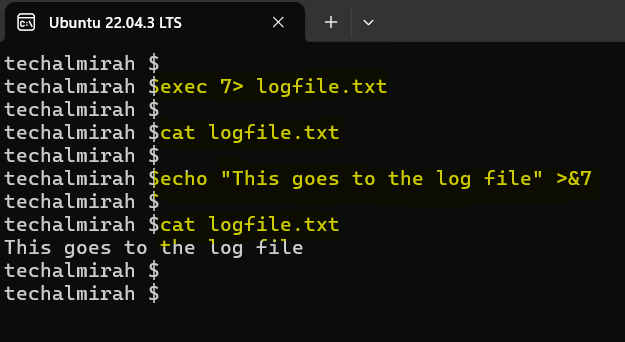
Open logfile.txt for writing on file descriptor 7 and then Send output to file descriptor 7.
Listing Open Files with lsof
The lsof command (list open files) lets you peek into your shell’s open files.
lsof -p $$ # List files open by your current shell (whose PID is stored in $$)Real-World Applications
File descriptors are indispensable for scripting. For example, you can:
- Log errors to a separate file while sending normal output to the terminal.
- Open and manipulate multiple files within a script.
- Create complex pipelines for data processing.
Conclusion
We’ve only scratched the surface of file descriptors and their potential. There’s a whole world of advanced techniques waiting to be explored. But with this foundation, you’re well on your way to becoming a Bash redirection master!